Members
Users in CHARP are members of one or more organisations and projects. Each membership comes with a specific role that determines what the user can do.
Add a member to a project
Select the project you want to add the member to (read here how to select a project).
In the main menu, under the PROJECT menu items, click Settings to access the project settings.
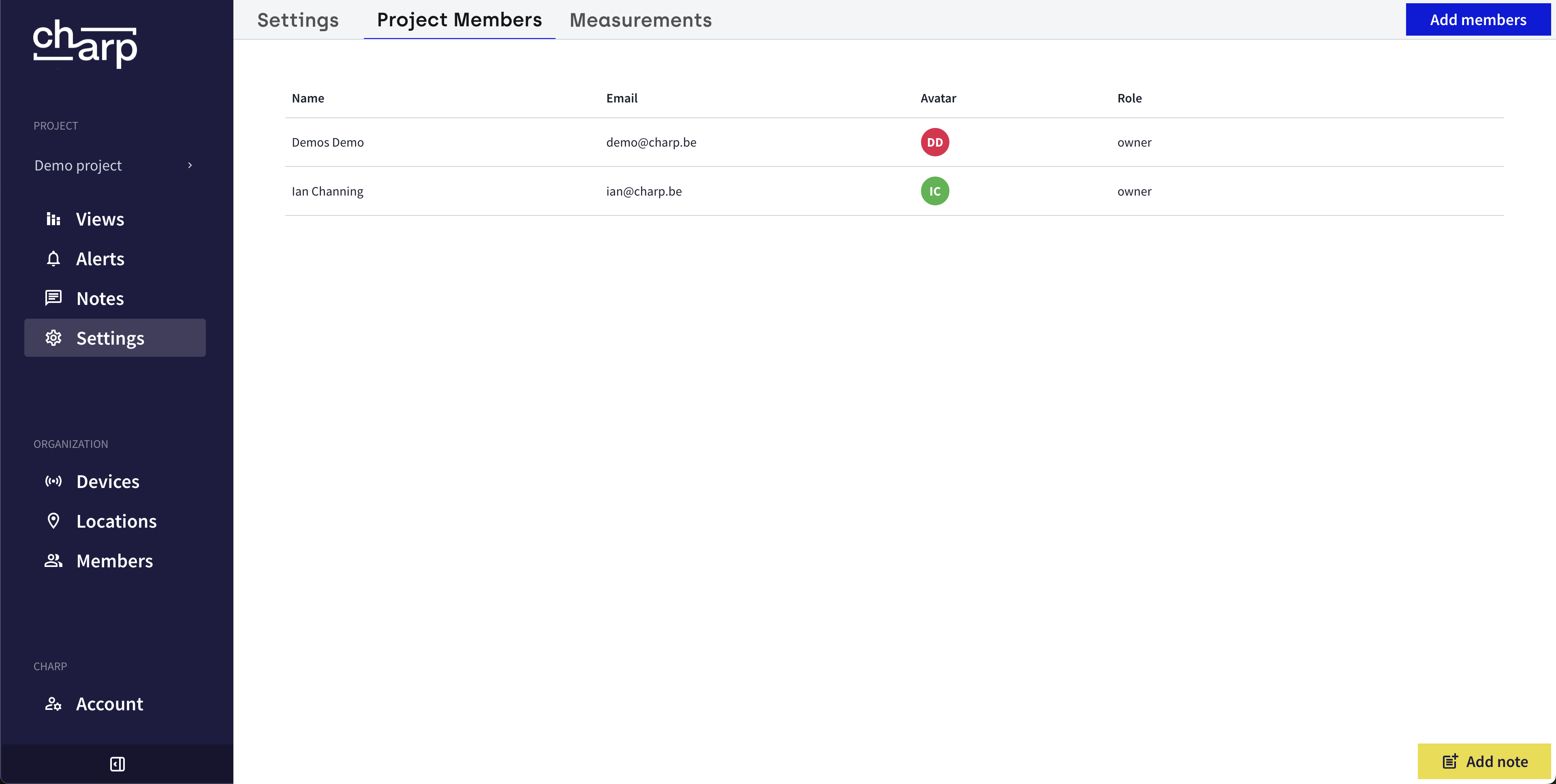
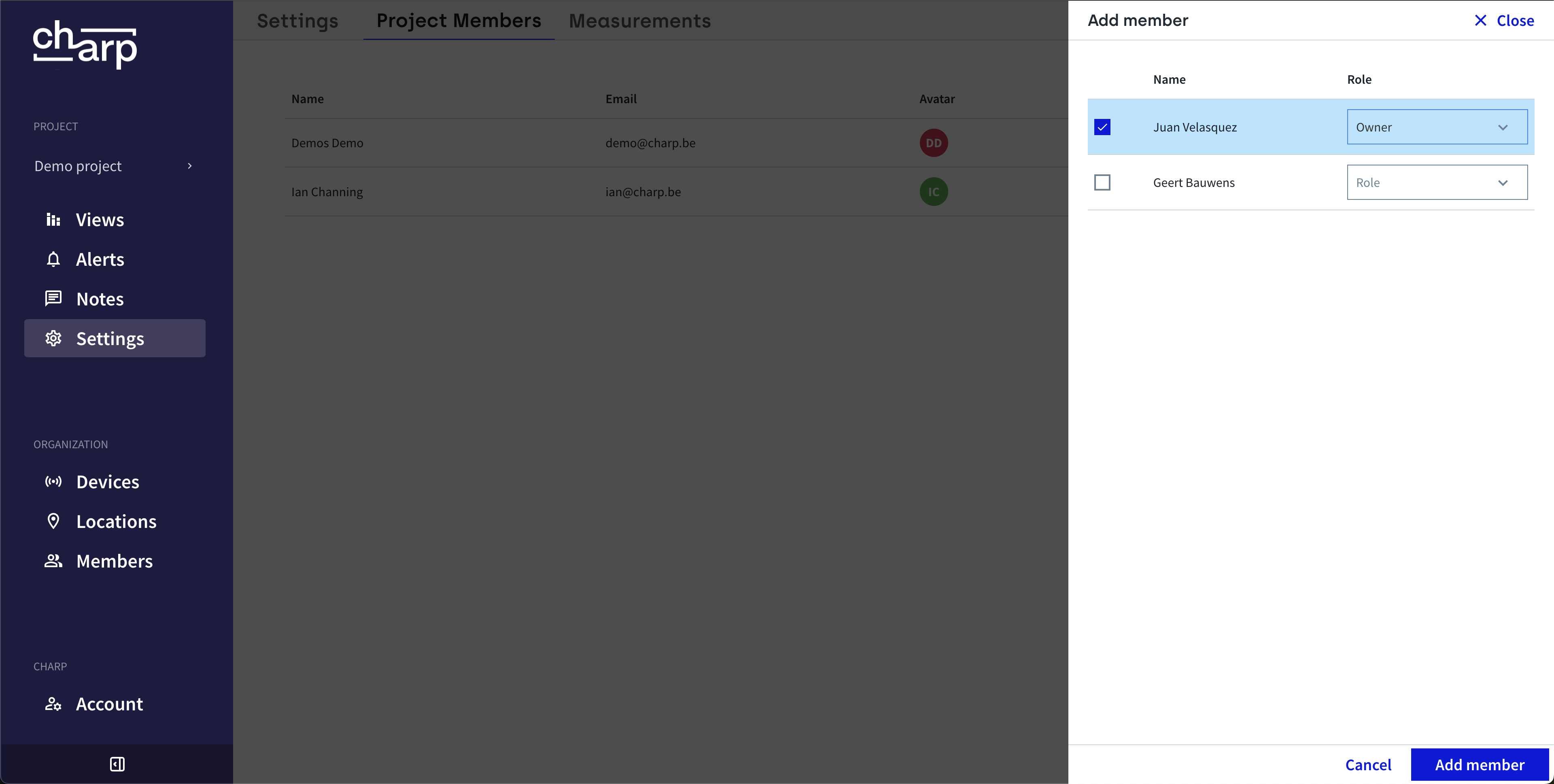
Now open the Project Members tab and click + Add members. The drawer that appears from the right lists all the organisation members that are not yet member of the project.
Tick the checkbox for those persons you want to turn into project members. Make sure to also select an appropriate role for each. Click Add member to confirm.
Organisation member roles and permissions
The table below shows the permissions available for each role at the organisation level.
| Permission | Owner | Collaborator | Member | Guest |
|---|---|---|---|---|
| Create project | Y | Y | N | N |
| Read projects | Y | Y | Y | Y |
| Export data | Y | Y | Y | N |
| Download chart | Y | Y | Y | N |
| Add device | Y | Y | N | N |
| Read devices | Y | Y | Y | Y |
| Upload data | Y | Y | N | N |
| Update device | Y | Y | N | N |
| Invite/delete members | Y | N | N | N |
| Edit roles | Y | N | N | N |
| Update locations | Y | Y | N | N |
| Create locations | Y | Y | N | N |
Add a member to the organisation
Click Members in the main menu to view the organisation members list. At the top right in the page's header menu, click the + Invite member button.
In the drawer that appears from the right, enter the person's email address and select the appropriate role. Now click Invite member at the bottom right to confirm and send the invitation.
Project member roles and permissions
The table below shows the permissions available for each role at the project level.
| Permission | Owner | Collaborator | Member | Guest |
|---|---|---|---|---|
| Create note | Y | Y | Y | N |
| Export data | Y | Y | Y | N |
| Read views | Y | Y | Y | Y |
| Create views | Y | Y | N | N |
| Update views | Y | Y | N | N |
| Delete views | Y | Y | N | N |
| Update project | Y | Y | N | N |
| Delete project | Y | N | N | N |
| Invite/delete users | Y | Y | N | N |
| Edit roles | Y | N | N | N |
| Edit project alert notifications | Y | Y | Y | N |